Start Here•Lesson 2 of 3•About 8 minutes

A new screen full of small icons is the fastest way to feel lost. The good news is that you only need a handful of them, and once you know what each one does, ChatGPT stops feeling like someone else’s tool.
This lesson also covers two settings that decide what ChatGPT remembers about you and how your conversations are used. They take two minutes to check, and knowing where they are means you stay in control from day one.
They all sit together at the bottom of the screen, on a computer and in the phone app.
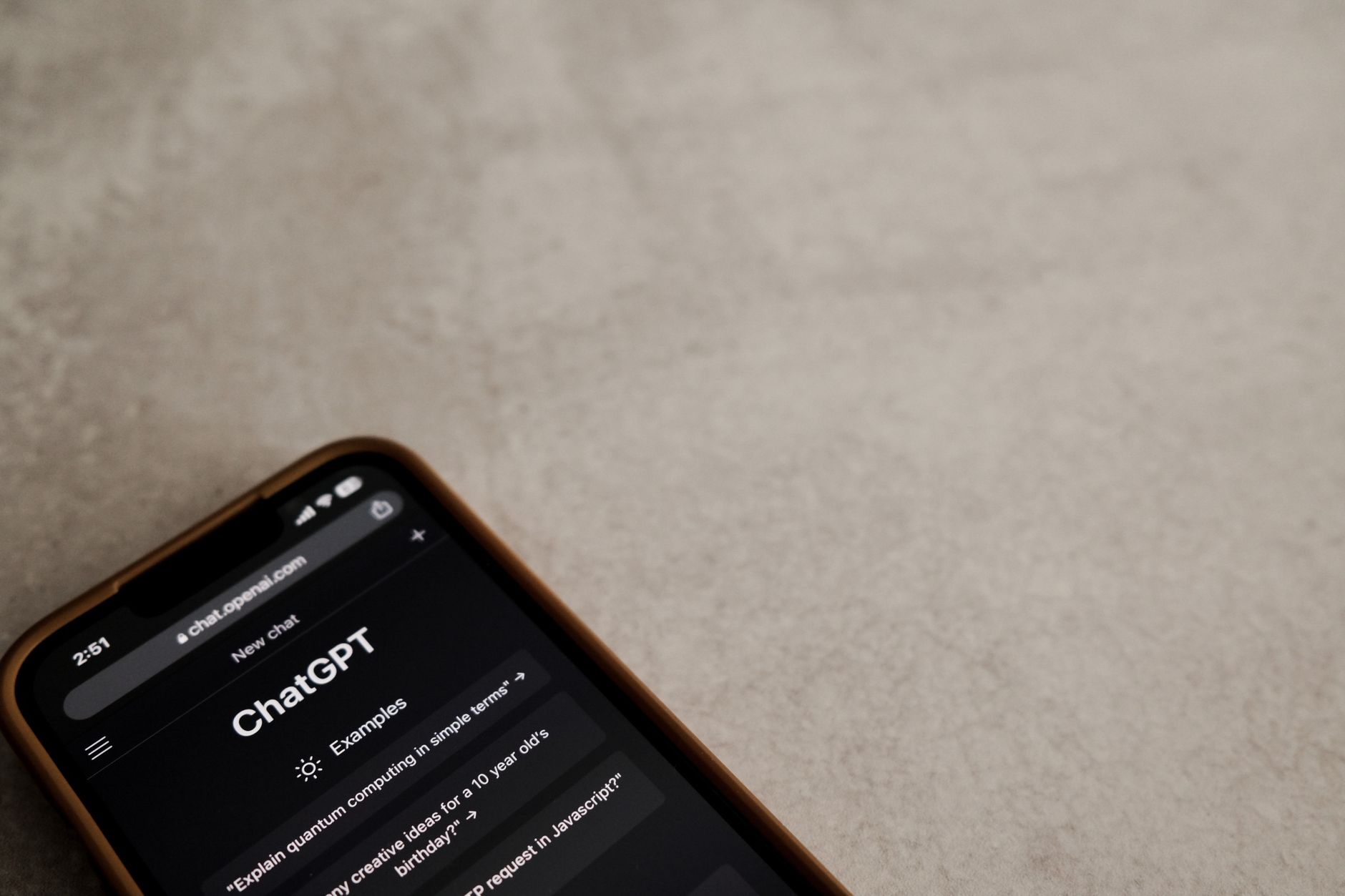
On a computer, the side menu runs down the left edge. In the phone app, tap the two short lines in the top-left corner to open it. Inside you’ll find:
Icons move around from time to time as ChatGPT is updated. If something isn’t exactly where this lesson says, look for the closest match, or simply ask ChatGPT: “Where do I find the button to start a new chat?”
ChatGPT can walk you through its own screen.
Your answers are saved on this device only, so you do not have to retype them in later lessons.
You’ll never break anything by trying these. Hover over a message on a computer, or press and hold it on a phone, to see the small icons.
Reply in plain words: "Make it shorter," "Friendlier, please," or "I meant my kids' schedule." This works most of the time.
Tap the small pencil next to your own message, change the wording, and send it again. ChatGPT answers the new version.
Under ChatGPT's answer, the circular-arrow icon asks it to write a brand-new version of the same answer.
The copy icon under an answer puts the whole reply on your clipboard, ready to paste into an email or text.
Copy this into the same chat as the answer you want changed.
Your answers are saved on this device only, so you do not have to retype them in later lessons.
Memory lets ChatGPT remember helpful facts about you between conversations, like your name, your medium, and your busiest days. Leave it on for this course.
Where to find it: tap your name or picture, then Settings, then Personalization, then Memory. You can read what it remembers, correct it, or delete it at any time.
A switch called Improve the model for everyone decides whether your conversations can be used to train OpenAI’s future models. It’s your choice; the course works the same either way.
Where to find it: tap your name or picture, then Settings, then Data Controls. On a phone, open the side menu and tap your name first.
Bonus: Temporary Chat. For a one-off question you’d rather not keep, start a new chat and tap the Temporary button near the top of the screen. That chat won’t be saved to your history, won’t add to ChatGPT’s memory, and isn’t used for training.
If you did Lesson 1 on this device or while signed in, your name and medium are already filled in. Add your busiest days, copy the prompt, and send it to ChatGPT with Memory turned on.
Your answers are saved on this device only, so you do not have to retype them in later lessons.
ChatGPT confirms what it saved. You may also see a small note that its memory was updated. The wording varies, but it should read something like this:
Got it, Dana! I’ll remember that you’re an acrylic painter whose busiest days are Tuesdays and Thursdays, and that you like short, friendly, plain-English answers.
To double-check, open Settings → Personalization → Memory. Your facts should be listed there.
ChatGPT says it can’t remember things? Memory is probably off. Turn it on under Settings → Personalization → Memory, then send the prompt again.
You can’t find the side menu on your phone? Look for two short lines in the top-left corner and tap them.
The microphone doesn’t work? Your phone may be asking permission to use it. Tap Allow, or turn on microphone access for the ChatGPT app in your phone’s settings.
It remembered something wrong? Just tell it: “Please update your memory: my busiest days are Mondays and Wednesdays.”
You don’t see the Temporary button? Start a brand-new chat first; the button only appears on a fresh conversation.
Sometime this week, while you’re waiting somewhere, tap the microphone and ask ChatGPT a real question out loud, like “What’s a quick dinner I can make with chicken and rice?” Then check Settings → Personalization → Memory to see what it knows about you. When you’re done, mark this lesson complete.
Your progress is saved on this device. Sign in to keep it on every device.