Start Here•Lesson 1 of 2•About 10 minutes

Everything else in this course, from untangling your family calendar to writing your artist statement, happens inside ChatGPT. Getting the account right once means you never have to think about it again.
The sign-up itself is easy. What trips most people up is an unfamiliar screen, a code that lands in the spam folder, or a pricing page that makes it look like you have to pay. This lesson walks you past each of those, so the only decision you make is which plan suits you.
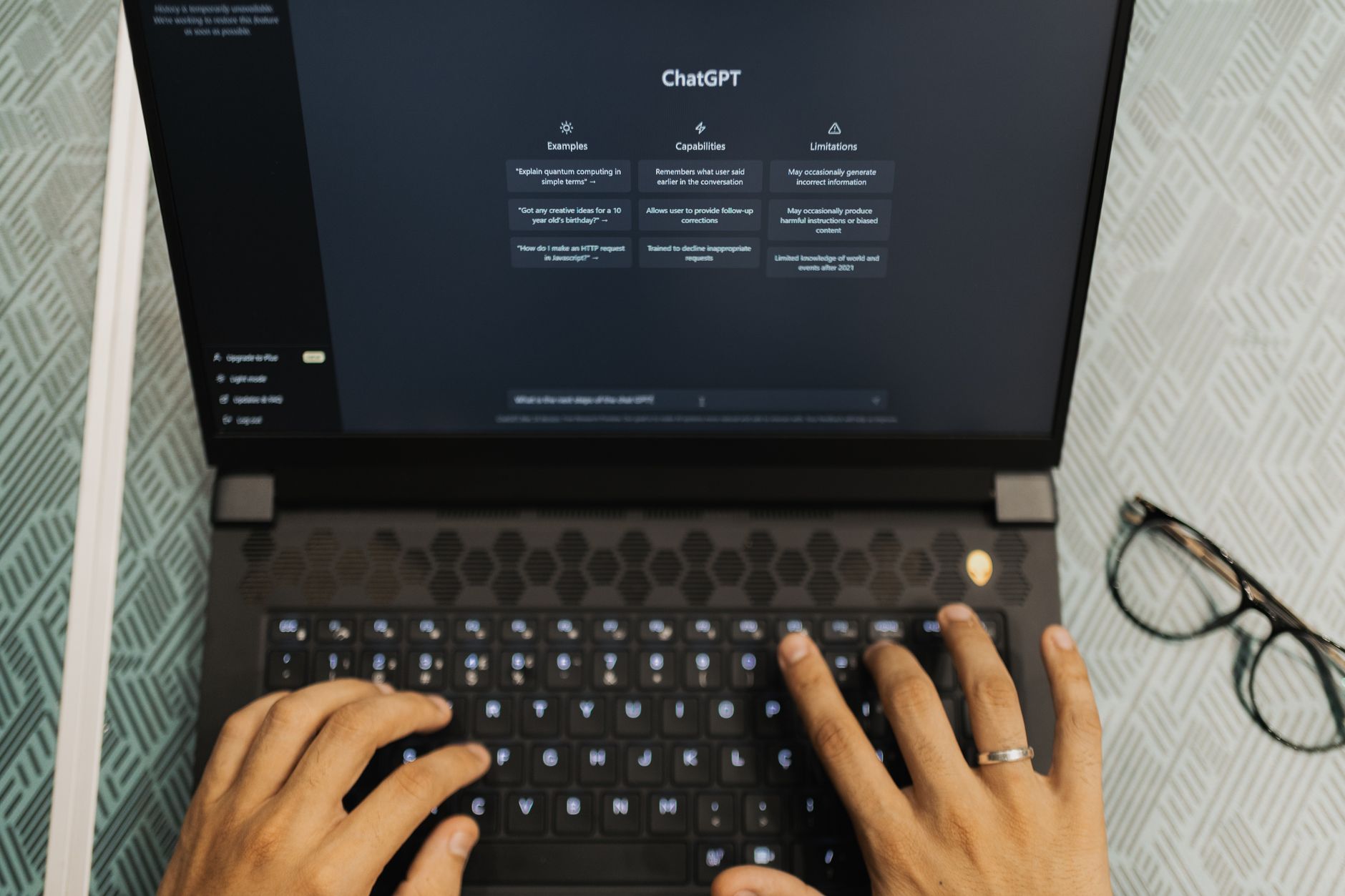
Helpful habit: save chatgpt.com as a bookmark, or keep the app on your phone’s home screen, so it’s one tap away in the pickup line. Screens change from time to time, so if a button has a slightly different name, look for the closest match.
Every new account starts on the free plan. The pricing page can make it look like you have to pay, but you don’t. Here’s what each plan costs in the US as of September 2026.
Plenty for trying things out. Everyday text chats are unlimited, but photo uploads, image tools, and memory are limited.
A budget step up. More messages, uploads, and image creation than Free, and longer memory, using the same everyday model.
Our pick for this course. Expanded memory, uploads, and messages, plus OpenAI’s more advanced models for harder jobs.
Built for heavy professional use. You won’t need it for anything in this course, so feel free to skip it.
Start on Free while you work through Start Here and Module 1. When you reach Module 2, where you’ll upload photos of your artwork and build a profile ChatGPT remembers, upgrade to Plus. The monthly plan can be canceled from your account settings at any time.
To upgrade later: tap your name or profile picture (bottom left on a computer, or in the side menu on the phone app), choose Upgrade plan, pick Plus, and follow the payment steps. If you don’t see those words exactly, look for the closest match; OpenAI moves things around now and then. Prices can change and may differ outside the US, so always check the amount on screen before you pay.
This is how every prompt in the course works. Fill in the boxes, tap Copy Prompt, then tap Open ChatGPT. In ChatGPT, press and hold (or right-click) inside the message box, choose Paste, and press Enter or tap the arrow.
Your answers stay on this device, and later lessons fill in the same blanks for you.
Your answers are saved on this device only, so you do not have to retype them in later lessons.
Within a few seconds, ChatGPT writes back. Your answer will be worded differently, but it should look something like this example for an artist whose biggest time drain is her kids’ activity schedule:
Nice to meet you, Dana! Here are three ways I can help with your kids’ activity schedule:
1. One weekly schedule. Paste in practice times and school events, and I’ll organize them into one clear list by day.
2. Find your free time. I can point out the gaps between pickups where you could sketch or plan a painting.
3. Quick messages. I can draft short texts to coaches or other parents about carpools and schedule changes.
Which day of the week feels the most packed for you?
No code in your email? Check your spam or promotions folder, wait two minutes, then look for a Resend option on the code screen.
Don’t want another password? Go back and choose Continue with Google, Microsoft, or Apple instead.
Paste isn’t working on your phone? Press and hold inside the ChatGPT message box until a small menu appears, then tap Paste.
The answer missed the point? Just reply in plain words, like “Make that shorter” or “I meant my kids’ schedule, not my work schedule.” ChatGPT adjusts as you go.
Asked for payment? You may be on the upgrade screen. Close it, and you’ll stay on the free plan.
Before your next lesson, ask ChatGPT one more question about your real life, in your own words. It can be as simple as “Give me three easy weeknight dinners my kids will eat.” The more you use it, the more natural it feels. When you’re done, mark this lesson complete.
Your progress is saved on this device. Sign in to keep it on every device.